
Pay with OPay is now live on Fincra. Your Nigerian customers can pay you straight from their OPay balance, and you collect through the same Fincra integration you already use.
A customer is ready to pay you, and their money sits in their OPay wallet. If your checkout only offers card or bank transfer, that customer has to move funds or find another way to pay before you get the sale. Every extra step is a chance for them to leave.
Pay with OPay removes that step. It adds OPay to the payment options you offer through Fincra, so customers can pay from the wallet they already use. This guide covers how it works for your customer, how your developers set it up, and how to confirm a payment before you give value.
Watch the walkthrough:
What Pay with OPay is
Pay with OPay is a payment method on Fincra’s collections API. It lets your customers pay you directly from their OPay wallet. OPay is a Nigerian digital wallet with a large retail user base.
Two things to know up front:
- It collects in naira only. Every OPay payment is in NGN.
- It works by redirect. Your customer approves the payment inside OPay, and OPay handles their login and security checks. Your platform never touches their OPay credentials.
What your customer sees
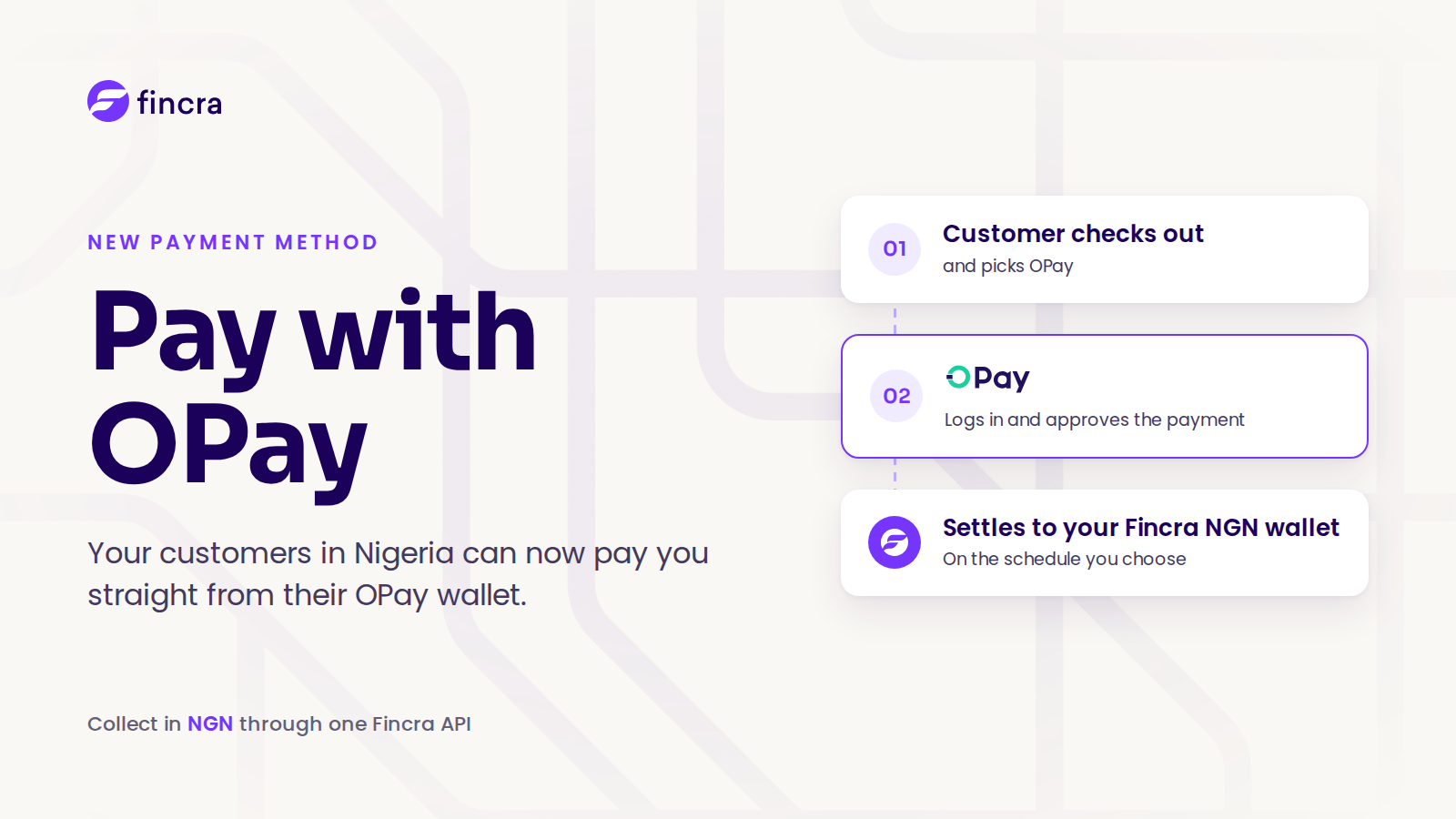
From the customer’s side, paying takes less than a minute:
- They choose to pay with OPay at your checkout.
- They’re sent to OPay, where they log in to their account.
- They pick the OPay balance to pay from and approve the payment.
- OPay sends them back to your site or app.
The return to your site is part of the experience, not proof of payment. Your system confirms the payment separately, which is covered below.
How the Pay with OPay integration works
For your developers, an OPay payment is four API calls on Fincra’s checkout endpoints. Full request and response details are in the Fincra developer docs.
Before you start, confirm OPay is switched on for your account. OPay has to be enabled on your Fincra account before you can charge with it. Your team can check this with one call that lists the payment methods available to you in naira. If OPay isn’t in that list, payment requests come back as access denied, and you’ll need to ask Fincra to enable it.
Step 1: Create the payment. Send the amount, currency and the customer’s name, email and phone number. You also choose who pays the fee, your business or the customer, and where Fincra settles the money. Fincra returns a payment code, which is the reference for this payment.
Step 2: Create the OPay charge. Using that payment code, ask Fincra for an OPay charge. Fincra returns an OPay link and marks the charge as pending.
Step 3: Send the customer to OPay. Redirect the customer to the link. They log in, approve the payment and come back to the return address you set in Step 1.
Step 4: Confirm the payment. Check the final status before you deliver anything.
If you’d rather not build your own payment screen, Step 1 also returns a link to Fincra’s hosted checkout page. Your developers can use that instead of calling Steps 2 and 3 directly.
Confirm the payment before you give value
This is the step that protects your revenue. A customer landing back on your site doesn’t mean they paid. Your system should confirm every OPay payment in one of two ways:
- Webhook. Fincra notifies your system when the charge reaches a final outcome: paid or failed. Webhooks go to the callback address in your Fincra business settings, and only when webhooks are switched on there.
- Status check. Your system asks Fincra directly for the status of the payment.
Whichever you use, release goods or credit an account only when all four checks pass:
- The payment status shows it succeeded.
- The reference matches the payment you created.
- The amount received equals the amount expected.
- The currency is NGN.
If the amounts differ, Fincra’s response shows whether the customer paid too much or too little, so your team can handle it.
Settlement and fees
Fincra settles OPay collections to your Fincra NGN wallet. You choose when: instantly, the next day, three days later, or at the end of the week.
You also decide who carries the transaction fee. If your business carries it, Fincra deducts the fee and VAT before settling to you. If the customer carries it, the fee is added to what they pay. Speak to the Fincra team for the pricing on your account.
Test Pay with OPay before you go live
Fincra’s sandbox supports Pay with OPay end to end. Test payments send your team to OPay’s own sandbox payment page, so you can run a full payment, webhook included, before any real money moves.
Get started with Pay with OPay
Pay with OPay sits alongside card, bank transfer and Fincra’s other collection methods, all through one API. For more on the payment rails behind them, read Modern Rails for Africa’s Economy. To switch on Pay with OPay:
- Existing Fincra customers: ask your account manager to enable OPay, then point your developers to the Fincra developer docs.
- New to Fincra: speak to the team at https://www.fincra.com.